Browsing "Older Posts"

Home » Tutorial

🖍📜📒 Tự Học Phát âm Pinyin Phiên âm Tiếng Trung - Vận mẫu - P2

🖍📜📒 Tự Học Phát âm Pinyin Phiên âm Tiếng Trung - Vận mẫu - P2


học tiếng trung online,tự học tiếng trung,phát âm tiếng trung,học tiếng trung,dạy tiếng trung,tiếng trung cơ bản,học phát âm tiếng trung,dạy tiếng phổ thông,pinyin,phien am tieng trung,phien am co ban,phien am tieng hoa,phiên âm,học tiếng trung online bài 2,quy tac phien am tieng trung,nguyen tac ghep am,hệ thống phiên âm,tiếng trung,hoc tieng trung,học pinyin,học pinyin tiếng trung


Hay download va Tu hoc cac chu cai phien am trong tieng hoa, giup ban nho lau va hoc nhanh nhat
Thanh mẫu
Vận mẫu
Thanh Điệu

Các bạn có biết Phiên âm trong tiếng trung là một điều cực kỳ cơ bản, chỉ cần bạn nắm được quy tắc và cách phát âm chính xác thì bạn sẽ đọc và nói được tiếng hoa nhhư người bản xứ. Đồng thời thì bạn sẽ có khả năng tự học được tiếng Trung Quốc.
Thế nhưng nếu chỉ học mà không có cách để nhớ thì sẽ không bao giờ học được, đây là cách học dễ nhớ và thông qua hình ảnh, chẳng những bạn có thể học được phiên âm mà còn học được từ vận, giúp tăng thêm phần thú vị cho bài học. chỉ cần mỗi ngày bạn xem video này. bạn sẽ có thể học dược phiên âm một cách nhanh nhất và hiệu quả nhất.

Cách học và đọc chính xác Vận Mẫu:

a
o
e
i
u
ü
ai
ei
ui
ao
ua
uai
uo
üe
üan
ian
ie
ou
iu
an
en
in
un
ün
ang
eng
ing
ong
iang
uan
uang
iong
ia
iao
er


Download :
Bảng Chữ Cái Phiên Âm Và Hình Ảnh :
Tải File

Bảng Quy Tắc Ghép Vầng Thanh Mẫu Và Vận Mẫu Phiên Âm :
Tải File

Các Video Liên Quan :
Tự Học Phát âm Pinyin Phiên âm Tiếng Trung - Thanh mẫu - P1
Xem Video


Tự Học Phát âm Pinyin Phiên âm Tiếng Trung - Ghép Âm Vầng - P3
Xem Video


🖍📜📒 Tự Học Phát âm Pinyin Phiên âm Tiếng Trung - Vận mẫu - P2 


Made by | dG Guo | | Quach Cam Hung |
►Youtube : https://www.youtube.com/c/SkillsdGGuo
►Facebook Fanpage : https://www.facebook.com/skillsdarrenguo
►Website : https://skillsdarrenguo.blogspot.com
►Twitter : https://twitter.com/skillsdarrenguo
Chủ Nhật, 12 tháng 1, 2020

🖍📜📒 Tự Học Phát âm Pinyin Phiên âm Tiếng Trung - Ghép Âm Vầng - P3

🖍📜📒 Tự Học Phát âm Pinyin Phiên âm Tiếng Trung - Ghép Âm Vầng - P3


học tiếng trung online,tự học tiếng trung,phát âm tiếng trung,học tiếng trung,dạy tiếng trung,tiếng trung cơ bản,học phát âm tiếng trung,dạy tiếng phổ thông,pinyin,phien am tieng trung,phien am co ban,phien am tieng hoa,phiên âm,quy tac phien am tieng trung,học tiếng trung online bài 2,hoc pinyin,học pinyin tiếng trung


Hay download va Tu hoc cac chu cai phien am trong tieng hoa, giup ban nho lau va hoc nhanh nhat
Thanh mẫu
Vận mẫu
Thanh Điệu

Phần 3 Mọi Người Sẽ Được Học Phát âm Pinyin Phiên âm Tiếng Trung - Ghép Âm Vầng ( Ghép Chữ Cái Phụ Âm Với Nguyên Âm Đơn Và Nguyên Âm Kép - Thanh Mẫu Và Vận Mẫu).
Các bạn có biết Phiên âm trong tiếng trung là một điều cực kỳ cơ bản, chỉ cần bạn nắm được quy tắc và cách phát âm chính xác thì bạn sẽ đọc và nói được tiếng hoa nhhư người bản xứ. Đồng thời thì bạn sẽ có khả năng tự học được tiếng Trung Quốc.
Thế nhưng nếu chỉ học mà không có cách để nhớ thì sẽ không bao giờ học được, đây là cách học dễ nhớ và thông qua hình ảnh, chẳng những bạn có thể học được phiên âm mà còn học được từ vận, giúp tăng thêm phần thú vị cho bài học. chỉ cần mỗi ngày bạn xem video này. bạn sẽ có thể học dược phiên âm một cách nhanh nhất và hiệu quả nhất.
Cach ghep doc thanh mau va van mau trong phien am tieng trung hoa. Tu do ban co the tu hoc bang cach tra tu tren google dich va tu dien.
Chúc mọi người có thể thoải mái tra từ mới trên Google và từ điển mà không sợ nhái sai phát âm rồi !

Cách học và đọc chính xác Thanh Mẫu:
b
p
m
f
d
t
n
l
g
k
h
j
q
x
zh
ch
sh
r
z
c
s
y
w

Cách học và đọc chính xác Vận Mẫu:
a
o
e
i
u
ü
ai
ei
ui
ao
ua
uai
uo
üe
üan
ian
ie
ou
iu
an
en
in
un
ün
ang
eng
ing
ong
iang
uan
uang
iong
ia
iao
er


Download :

Bảng Quy Tắc Ghép Vầng Thanh Mẫu Và Vận Mẫu Phiên Âm :
Tải File


Các Video Liên Quan :
Tự Học Phát âm Pinyin Phiên âm Tiếng Trung - Thanh mẫu - P1
Xem Video

Tự Học Phát âm Pinyin Phiên âm Tiếng Trung - Vận mẫu - P2
Xem Video


🖍📜📒 Tự Học Phát âm Pinyin Phiên âm Tiếng Trung - Ghép Âm Vầng - P3 


Made by | dG Guo | | Quach Cam Hung |
►Youtube : https://www.youtube.com/c/SkillsdGGuo
►Facebook Fanpage : https://www.facebook.com/skillsdarrenguo
►Website : https://skillsdarrenguo.blogspot.com
►Twitter : https://twitter.com/skillsdarrenguo

🖍📜📒 Tự Học Phát âm pinyin Phiên âm Tiếng Trung - Thanh mẫu - P1

🖍📜📒 Tự Học Phát âm pinyin Phiên âm Tiếng Trung - Thanh mẫu - P1


học tiếng trung online,tự học tiếng trung,phát âm tiếng trung,học tiếng trung,dạy tiếng trung,tiếng trung cơ bản,học phát âm tiếng trung,dạy tiếng phổ thông,pinyin,phien am tieng trung,phien am co ban,phien am tieng hoa,phiên âm,học tiếng trung online bài 1,quy tac phien am tieng trung,nguyen tac ghep am,hệ thống phiên âm,tiếng trung,hoc tieng trung,học pinyin,học pinyin tiếng trung

Hay download va Tu hoc cac chu cai phien am trong tieng hoa, giup ban nho lau va hoc nhanh nhat
Thanh mẫu
Vận mẫu
Thanh Điệu

Các bạn có biết Phiên âm trong tiếng trung là một điều cực kỳ cơ bản, chỉ cần bạn nắm được quy tắc và cách phát âm chính xác thì bạn sẽ đọc và nói được tiếng hoa nhhư người bản xứ. Đồng thời thì bạn sẽ có khả năng tự học được tiếng Trung Quốc.
Thế nhưng nếu chỉ học mà không có cách để nhớ thì sẽ không bao giờ học được, đây là cách học dễ nhớ và thông qua hình ảnh, chẳng những bạn có thể học được phiên âm mà còn học được từ vận, giúp tăng thêm phần thú vị cho bài học. chỉ cần mỗi ngày bạn xem video này. bạn sẽ có thể học dược phiên âm một cách nhanh nhất và hiệu quả nhất.
Cách học và đọc chính xác Thanh Mẫu:
b
p
m
f
d
t
n
l
g
k
h
j
q
x
zh
ch
sh
r
z
c
s
y
w

Download :
Bảng Chữ Cái Phiên Âm Và Hình Ảnh :
Tải File

Bảng Quy Tắc Ghép Vầng Thanh Mẫu Và Vận Mẫu Phiên Âm :
Tải File


Các Video Liên Quan :
Tự Học Phát âm Pinyin Phiên âm Tiếng Trung - Vận mẫu - P2
Xem Video


Tự Học Phát âm Pinyin Phiên âm Tiếng Trung - Ghép Âm Vầng - P3
Xem Video 


🖍📜📒 Tự Học Phát âm pinyin Phiên âm Tiếng Trung - Thanh mẫu - P1 


Made by | dG Guo | | Quach Cam Hung |
►Youtube : https://www.youtube.com/c/SkillsdGGuo
►Facebook Fanpage : https://www.facebook.com/skillsdarrenguo
►Website : https://skillsdarrenguo.blogspot.com
►Twitter : https://twitter.com/skillsdarrenguo

💻🖥 ClearOne Setting

💻🖥 ClearOne Setting


ClearOne,thiết lập,sao lưu,phục hồi,ClearOne Converge,Connect 2 ClearOne Devices,computer,software,technology (industry),beamforming microphone array,clearone communications inc. (business operation),professional audio,converge console,clearone communications,clearone converge pro 2 software,clearone converge pro 880t,clearone converge pro 8i,clearone converge pro,clearone advantage,clearone advantage reviews
ClearOne Setting with computer
Connect 2 ClearOne Devices
Connect ClearOne Converge 8i with ClearOne Converge 800T using computer software
Cách kết nối 2 thiết bị phòng họp ClearOne Converge 8i và ClearOne Converge 800T để phát ra âm thanh đồng thời tắt tiếng hú micro và tắt tiếng rè của điện thoại !
Sao lưu và phục hồi dữ liệu chỉnh sửa !

💻🖥 ClearOne Setting 


Made by | dG Guo | | Quach Cam Hung |
►Youtube : https://www.youtube.com/c/SkillsdGGuo
►Facebook Fanpage : https://www.facebook.com/skillsdarrenguo
►Website : https://skillsdarrenguo.blogspot.com
►Twitter : https://twitter.com/skillsdarrenguo

📱📲 Chuyen 11 so sang 10 so DT tai VN qua Zalo trong 10 giay

📱📲 Chuyen 11 so sang 10 so DT tai VN qua Zalo trong 10 giay


chuyển đổi sim 11 số sang 10 số viettel,đổi sim 11 số về 10 số viettel,đổi sim 11 số thành 10 số mobifone,đổi sim 11 số thành 10 số viettel,đổi đầu số điện thoại 11 số viettel,sim 11 số về 10 số vinaphone,cách đổi sim 11 số sang 10 số của viettel,11 số,chuyển 11 số thành 10 số,sửa danh bạ,zalo,Cách chuyển danh bạ 11 số thành 10 số,cach chuyen dau so,chuyen 11 so thanh 10


- Cách chuyển danh bạ 11 số sang thành 10 số hoàn toàn tự động không cần cài phần mềm, tự nhận dạng mã vùng quốc tế ( quốc gia Việt Nam +84 ) trong vòng 10 giây.
- Day la Cach chuyen 11 so Viettel, Mobifone, Vinaphone o trong Viet Nam de dang thong qua phan mem tich hop co san zalo ma khong can cai them bat cu chuong trinh tren IOS, Android, chi can nang cap update zalo thi viec chuyen doi cua ban se tien hanh nhanh nhat.
- 越南電話11號轉成10號碼方式

- Như các bạn cũng biết vào ngày 15/09 việc chuyển đổi sim 11 số sang 10 số sẽ chính thức được bắt đầu. Ngoài việc quan trọng là thực hiện việc chuyển về 10 số thì bạn cũng cần phải chuyển đổi các số điện thoại trên danh bạ từ 11 số thành 10 số. Việc này đã trở nên mối lo ngại vì phải tốn khá nhiều thời gian nếu như chuyển đổi số điện thoại thủ công trên điện thoại di động, còn phải lên mạng tra cứu thông tin chuyển đổi các số của các nhà mạng tại VN. Video và bài viết này sẽ hướng dẫn cho các bạn cách chuyển đổi danh bạ 11 số thành 10 số hoàn toàn tự động, đơn giản và nhanh chóng trên 2 hệ điều hành iOS và Android.


📱📲 Chuyen 11 so sang 10 so DT tai VN qua Zalo trong 10 giay 


Made by | dG Guo | | Quach Cam Hung |
►Youtube : https://www.youtube.com/c/SkillsdGGuo
►Facebook Fanpage : https://www.facebook.com/skillsdarrenguo
►Website : https://skillsdarrenguo.blogspot.com
►Twitter : https://twitter.com/skillsdarrenguo
 

💻🖥 Mozilla ThunderBird Mail Tutorial

💻🖥 Mozilla ThunderBird Mail Tutorial

mozilla thunderbird,email software,best email software,Mozilla thunderbird create new account,thunderbird,email,mozilla,ThunderBird tutorial,tutorial,thunderbird addon,Mozilla thunderbird create new profile,thunderbird import windows live mail,import windows live mail to thunderbird,hunderbird switch language,change display language,display language thunderbird

Addons Mozilla
Download Here

Mozilla ThunderBird Mail Add On
Download Here

In this Video, I want to show you all the mozilla thunderbird necessary tutorial
Mozilla thunderbird tutorial
* At first, you should download all the add on files above.
01 Mozilla thunderbird switch language
02 Mozilla thunderbird create new account ( profile )
03 Mozilla thunderbird import windows live mail Data


💻🖥 Mozilla ThunderBird Mail Tutorial 


Made by | dG Guo | | Quach Cam Hung |
►Youtube : https://www.youtube.com/c/SkillsdGGuo
►Facebook Fanpage : https://www.facebook.com/skillsdarrenguo
►Website : https://skillsdarrenguo.blogspot.com
►Twitter : https://twitter.com/skillsdarrenguo

💻🖥 How To Disable USB Drives / Removable Disks

💻🖥 How To Disable USB Drives / Removable Disks

block read and write access to usb storage devices,usb port,disable usb,disable usb drives,disable removable disks,disable removable drives,disable usb disks,disable usb drives in windows 10,restrict access to usb drives,windows 10 disable usb drives,disable removable disk drives,windows 10,windows 10 advanced tutorial,windows 7,windows 8.1,gpedit.msc,gpedit,GPO,enable USB,Enable usb drives,group policy,disable digital camera,windows 10 tutorial,khoa USB

How To Disable And Enable USB, Digital Camera USB Port using Group Policy (GPO)
Cách Khóa và Mở USB, Máy ảnh, máy chụp hình kỹ thuật số bằng Group Policy cho windows 7, Windows 8, Windows 8.1, Windows 10
You can do the same with windows 7, Windows 8, Windows 8.1, Windows 10

You have to do this steps as bellow:

    1. Go to the client machine and
    2. go to start button and type in to search box gpedit.msc
    3. then your group policy window will open
    4. left side of window - search Administrative Templates and double click on it
    5. then click on System
    6. next you will see Removable Storage Access just click on it
    7. then you will see lots of group policy name
    8. see the All Removable Storage Access: Deny All Access
    9. double click on it and select the option Enable and click on OK button
    10. you will success to block USB of client

 * You can Block one of the options depend on your necessity by enabling :
 Removable Disks: Deny Execte Access
 Removable Disks: Deny Read Access
 Removable Disks: Deny Write Access

 * You can also block the Digital Camera USB Port just Enable additional option :
 WPD Devices: Deny read access
    WPD Devices: Deny write access

 After all we run gpupdate/force to immediately update the policy setting.


💻🖥 How To Disable USB Drives / Removable Disks


Made by | dG Guo | | Quach Cam Hung |
►Youtube : https://www.youtube.com/c/SkillsdGGuo
►Facebook Fanpage : https://www.facebook.com/skillsdarrenguo
►Website : https://skillsdarrenguo.blogspot.com
►Twitter : https://twitter.com/skillsdarrenguo

💻🖥 Installing ClearOne In Windows 10 Error Solution

💻🖥 Installing ClearOne In Windows 10 Error Solution


clearone communications inc. (business operation),clearone,training,windows 10,how to fix,operative system,thiết lập,clearone converge,computer,software,technology (industry),converge console,clearone communications,clearone converge pro 2 software,clearone converge pro,clearone advantage,clearone advantage reviews,clearone setting


How To Solve the Problem of installing ClearOne Converge Program software in windows 10 when driver is can not install.
You Should turn off one of the option windows 10 provided.

💻🖥 Installing ClearOne In Windows 10 Error Solution


Made by | dG Guo | | Quach Cam Hung |
►Youtube : https://www.youtube.com/c/SkillsdGGuo
►Facebook Fanpage : https://www.facebook.com/skillsdarrenguo
►Website : https://skillsdarrenguo.blogspot.com
►Twitter : https://twitter.com/skillsdarrenguo

💻🖥 How To Upgrade windows 10 with File ISO Keep All Data

💻🖥 How To Upgrade windows 10 with File ISO Keep All Data

update lên windows 10,nâng cấp lên windows 10,windows 10 download,free upgrade to windows 10,windows 10 free upgrade,windows 10 update,windows 10 fall creators update,windows 10 2018,windows 10 free upgrade offer,windows 10 1607,windows 10 1703,windows 10 1709,update windows 10,windows 10,microsoft windows (operating system),windows update,upgrade,tutorial,upgrade windows 10,how to keep data,how to,更新windows 10,cumulative update for windows 10 v 1709


Windows 10 1607 - which began rolling out in August 2016, now has an end-of support date of April 10, 2018 (plus the six month extension for Enterprise and Education until October 9, 2018). Windows 10 1703, which Microsoft began delivering in April 2017, will hit its end of support date on October 9, 2018 (with the extension for Enterprise/Education until April 9, 2019). And Windows 10 1709, which Microsoft began rolling out in October 2017, has an end of support date of April 9, 2018 and extension for Enterprise/Education until October 8, 2019.
This means that Windows 10, version 1607 Semi-Annual Channel will no longer receive security updates and customers who contact Microsoft Support after the April update will be directed to update to the latest version of Windows 10 to remain supported.That the reason why we need to upgrade to the new version as soon as possible.

In this video I would like to show you how to Upgrade windows 10 Version 1607 to 1709 Via File *.ISO and keep all files, programs, apps, personal datas, without lost datas in safety.

You can do so with upgrading windows 7, 8 or 10 (Version 1607, 1703) x32 or x64 bit

Download Link File *.ISO :
Windows 10 1709 x32 or x64 All Languages (ISO)
Download Here


💻🖥 How To Upgrade windows 10 with File ISO Keep All Data


Made by | dG Guo | | Quach Cam Hung |
►Youtube : https://www.youtube.com/c/SkillsdGGuo
►Facebook Fanpage : https://www.facebook.com/skillsdarrenguo
►Website : https://skillsdarrenguo.blogspot.com
►Twitter : https://twitter.com/skillsdarrenguo

💻🖥 Export Outlook Contacts To Windows Live Mail

💻🖥 Export Outlook Contacts To Windows Live Mail

outlook 2010,microsoft outlook,export contacts from outlook,outlook 2013,outlook 2016,microsoft outlook (software),how to,import contact outlook,improt contact,import contact to windows live mail,windows live mail contacts import,thunderbird email contacts,import contacts to thunderbird,mozillthunderbird,contact,export contact,import contact,outlook contact export,csv,outlook,address book,so dia chi email


How to export Microsoft Outlook 2010 - 2013 - 2016 contact to CSV Format file
How to import contact from Microsoft Outlook into Mozilla Thunderbird - Windows Live Mail

To move your contacts from Outlook into Constant Contact, you need to export them into a file first, and save the file to your computer. The file can then be imported into Constant Contact.

Outlook 2010

1.From the Outlook ribbon, select File.
2.Click Options.
3.Click Advanced.
4.Under the Export section, click Export.
5.In the "Import and Export Wizard", click Export to a file.
6.Click Next.
7.Under "Create a file of type", choose Comma Separated Values (Windows).
8.Click Next.
9.Under "Select a folder to export from", choose the contact folder you want to export.
Note: If you have your email addresses in an Outlook Personal Address Book, first convert your email Personal Address Book to a Contacts folder. See your Outlook online help for more information.
10.Click Next.
11.Under "Save exported file as", click Browse and select where you want to save the file.
12.In the "File Name box", type a name for the file.
13.Click OK.
14.In the "Export to a File" dialogue box, click Next.
15.Click Finish.

 ​
Outlook 2013 & Outlook 2016

1.On your Outlook menu, click File
2.Click Open & Export - Import / Export.
3.Select "Export to a file".
4.Click Next.
5.Select "Comma Separated Values".
6.Click Next.
7.Select Contacts option under Personal Folders.
8.Click Next.
9.Click Browse and choose both a name and location for the exported file.
10.Click OK.
11.Click Next.
12.Click Finish.

Importing Contacts csv file into Windows Live Mail
To Import (restore) Contacts to Windows Live Mail
NOTE: You would have needed to already exported your contacts using OPTION ONE above before you will be able to import them.
1. Open Windows Live Mail, and open your Contacts.
2. Do either step 3 or 4 below to import your contacts from an exported comma separated values (.csv) or business card (.vcf) file(s) from OPTION ONE
3. To Import Contact(s) from a Business card (.vcf) File(s)
    A) Click on the Import ribbon button, and click on the Business card (.VCF) option.
 B) Navigate to where you saved the contact.csv with exported .vcf files from step 3 in OPTION ONE, and select and open the contact.csv.
4. To Import Contacts from a Comma separated values (.csv) File
    A) Click on the Import ribbon button, and click on the Comma separated values (.CSV) option.
    B) Click on Browse.
    C) Navigate to where you saved the exported .csv file from step 4 in OPTION ONE above, and click on Open.
    D) Click on Next.
    E) If you would like to add or remove any of the fields to be included when importing the contacts, then double click on any listed field and check (add) or uncheck (remove) the Import this field box, and click on OK. (see screenshots below)
      NOTE: Repeat this step for any field you would like to add (check) or remove (uncheck).
    F) When finished, click on the Finish button, and go to step 5 below.
5. Your contacts have been imported into Windows Live Mail.

Import Contacts into Mozilla Thunderbird

To import address book (contact.csv) into Mozilla Thunderbird:
1.Select Tools | Import... from the menu in Mozilla Thunderbird.
2.Make sure Address Books is selected.
3.Click Next.
4.Highlight Text file (LDIF,.tab,.csv,.txt) under Please select the program from which you would like to import.
5.Click Next.
6.Select the outlook contact.csv file you just created.
7.Make sure First record contains field names is checked.
8.Use the Move Up and Move Down buttons to match Mozilla Thunderbird address book fields on the left with Gmail fields on the right.
*Make sure at least
Primary Email and E-mail Address and Last Name and Name match.
Gmail has a unified name field and does not distinguish between first and last names.
You can use the Next button at the top to see what the import process will produce.
9.Click OK.
10.Now click Finish.

💻🖥Export Outlook Contacts To Windows Live Mail


Made by | dG Guo | | Quach Cam Hung |
►Youtube : https://www.youtube.com/c/SkillsdGGuo
►Facebook Fanpage : https://www.facebook.com/skillsdarrenguo
►Website : https://skillsdarrenguo.blogspot.com
►Twitter : https://twitter.com/skillsdarrenguo

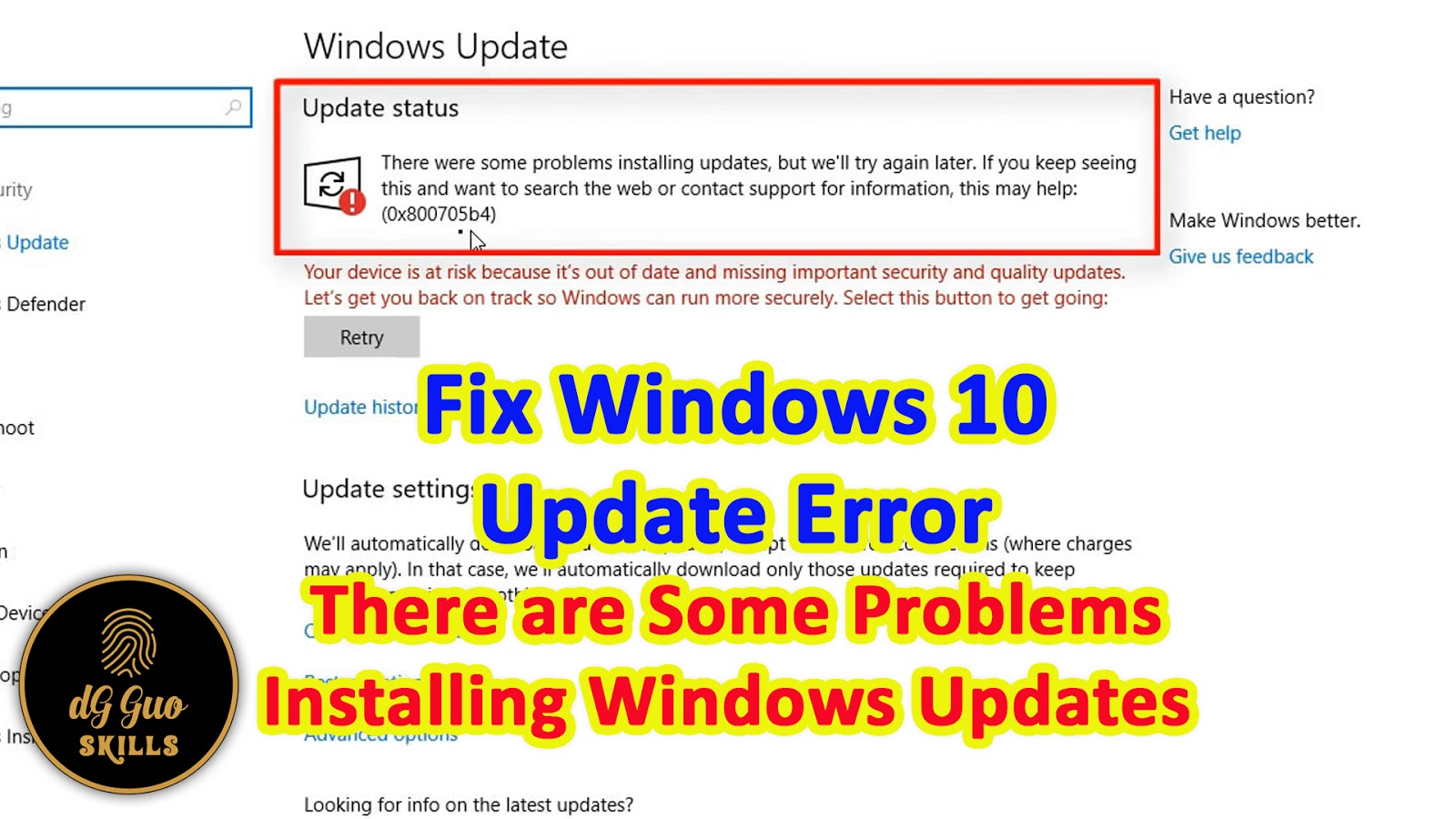
💻🖥 Fix update windows 10 - Some Problems Installing Windows Updates

💻🖥 Fix update windows 10 - Some Problems Installing Windows Updates

windows 10,Microsoft Windows (Operating System),windows 10 update error,windows 10 update solution,windows 10 update fix,how to,microsoft windows 10,tutorial,update error,fix,windows 10 anniversary update,windows 10 1703,windows 10 update problems,windows 10 update failed,windows update problems,microsoft windows 10 update,microsoft update problems,windows update failed,new windows 10 update,update download error,更新失敗,windows 10 更新失敗,錯誤,出錯


Fix Update error windows 10 version 1703 :

Windows 10 Update Error - Solution - Giải pháp windows 10 cập nhật bị lỗi, không đúng ngày - windows 10 更新失敗,錯誤,出錯解決方法
Solved Windows 10 Feature update, version 1703 - update error Fix - Some problems installing updates, but we’ll try again later

With the upgrade to Windows 10 a lot of people seem to be having Windows update errors
- it might be Windows Defender (the anti-virus software) or another update.
This video shows how to resolve both Windows Defender update issues and also general Windows 10 update issues.

I will show you how to solve the problem With the advisement of windows 10 version 1703 For Windows Update:
There were some problems installing updates, but we’ll try again later. If you keep seeing this and want to search the web or contact support for information, this may help: (0x800705b4)(0x8024402f)

💻🖥 Fix update windows 10 - Some Problems Installing Windows Updates


Made by | dG Guo | | Quach Cam Hung |
►Youtube : https://www.youtube.com/c/SkillsdGGuo
►Facebook Fanpage : https://www.facebook.com/skillsdarrenguo
►Website : https://skillsdarrenguo.blogspot.com
►Twitter : https://twitter.com/skillsdarrenguo

Download Link :
2018-01 Cumulative Update for Windows 10 Version 1703 for x86-based Systems (KB4056891)
2018-01 Cumulative Update for Windows 10 Version 1703 for x64-based Systems (KB4056891)
Download Here

2018-01 Cumulative Update for Windows 10 Version 1703 for x86-based Systems (KB4057144)
2018-01 Cumulative Update for Windows 10 Version 1703 for x64-based Systems (KB4057144)
Download Here


Follow the the Commands Line in the script then change the name of windows update offline's package you just downloaded to make sure the script is running.

Thứ Sáu, 11 tháng 5, 2018

💻🖥 Fix update windows 10 couldn't connect to the update service

💻🖥 Fix update windows 10 couldn't connect to the update service

windows 10,Microsoft Windows (Operating System),windows 10 update error,windows 10 update solution,windows 10 update fix,how to,microsoft windows 10,tutorial,Computer,update error,fix,windows 10 anniversary update,windows 10 1703,windows 10 update problems,windows 10 update failed,windows update problems,microsoft windows 10 update,microsoft update problems,windows update failed,update download error,更新失敗,windows 10 更新失敗,錯誤,出錯


Fix Update error windows 10 version 1703 :

Windows 10 Update Error - Solution - Giải pháp windows 10 cập nhật bị lỗi, không đúng ngày - windows 10 更新失敗,錯誤,出錯解決方法
Solved Windows 10 Feature update, version 1703 - update error Fix - Couldn't connect to the update service

With the upgrade to Windows 10 a lot of people seem to be having Windows update errors
- it might be Windows Defender (the anti-virus software) or another update.
This video shows how to resolve both Windows Defender update issues and also general Windows 10 update issues.

I will show you how to solve the problem With the advisement of windows 10 version 1703 For Windows Update:
We couldn't connect to the update service. We'll try again later, or you can check now. If it still doesn't work, make sure you're connected to the Internet.

💻🖥 Fix update windows 10 couldn't connect to the update service


Made by | dG Guo | | Quach Cam Hung |

Made by | dG Guo | | Quach Cam Hung |
►Youtube : https://www.youtube.com/c/SkillsdGGuo
►Facebook Fanpage : https://www.facebook.com/skillsdarrenguo
►Website : https://skillsdarrenguo.blogspot.com
►Twitter : https://twitter.com/skillsdarrenguo

Download Link :
2018-01 Cumulative Update for Windows 10 Version 1703 for x86-based Systems (KB4056891)
2018-01 Cumulative Update for Windows 10 Version 1703 for x64-based Systems (KB4056891)
Download Here

2018-01 Cumulative Update for Windows 10 Version 1703 for x86-based Systems (KB4057144)
2018-01 Cumulative Update for Windows 10 Version 1703 for x64-based Systems (KB4057144)
Download Here


Follow the the Commands Line in the script then change the name of windows update offline's package you just downloaded to make sure the script is running.

💻🖥Fix update windows 10 not up to date : late one month

💻🖥  Fix update windows 10 not up to date : late one month

windows 10,microsoft windows (operating system),windows 10 update error,windows 10 update solution,windows 10 update fix,how to,microsoft windows 10,tutorial,tutorial video,video tutorial,computer,update error,fix,windows 10 anniversary update,windows 10 1703,windows 10 update problems,windows 10 update failed,windows update problems,windows update failed,update download error,更新失敗,windows 10 更新失敗,錯誤,出錯,fix error,windows not up to date


Fix Update error windows 10 version 1703 :

Windows 10 Update Error - Solution - Giải pháp windows 10 cập nhật bị lỗi, không đúng ngày - windows 10 更新失敗,錯誤,出錯解決方法
Solved Windows 10 Feature update, version 1703 - update error Fix - Not Up Today - Late One Month

With the upgrade to Windows 10 a lot of people seem to be having Windows update errors
- it might be Windows Defender (the anti-virus software) or another update.
This video shows how to resolve both Windows Defender update issues and also general Windows 10 update issues.

I will show you how to solve the problem With the advisement of windows 10 version 1703 :
Update windows 10 not up today : late one month during successful status

💻🖥  Fix update windows 10 not up to date : late one month


Made by | dG Guo | | Quach Cam Hung |
►Youtube : https://www.youtube.com/c/SkillsdGGuo
►Facebook Fanpage : https://www.facebook.com/skillsdarrenguo
►Website : https://skillsdarrenguo.blogspot.com
►Twitter : https://twitter.com/skillsdarrenguo


Download Link :
2018-01 Cumulative Update for Windows 10 Version 1703 for x86-based Systems (KB4056891)
2018-01 Cumulative Update for Windows 10 Version 1703 for x64-based Systems (KB4056891)
Download Here

2018-01 Cumulative Update for Windows 10 Version 1703 for x86-based Systems (KB4057144)
2018-01 Cumulative Update for Windows 10 Version 1703 for x64-based Systems (KB4057144)
Download Here


Follow the the Commands Line in the script then change the name of windows update offline's package you just downloaded to make sure the script is running.

💻🖥How to Backup and Restore your Profile in Mozilla Thunderbird Email

💻🖥How to Backup and Restore your Profile in Mozilla Thunderbird Email 

Mozilla Thunderbird (Software),Thunderbird Profile,Thunderbird Profile Backup,Restore Thunderbird Profile,Mozilla Thunderbird Profile,Backup And Restore (Software),Backup Mozilla Thunderbird Profile,Restore Mozilla Thunderbird Profile,Thunderbird Tutorial,Mozilla Thunderbird Tutorial,Restore a Mozilla Thunderbird Profile,備份郵件,還原郵件,郵件,backup email,backup,restore,backup preference,backup Contacts,backup Rules Mail,phuc hoi email,thunderbird,mozilla thunderbird


How to Backup and Restore your Profile in Mozilla Thunderbird Email For all Windows XP, Windows 7, Windows 8, Windows 10

Backing up your emails in Mozilla Thunderbird is easier than you think. Within a few simple steps, you can back up your emails.
Profiles - Where Thunderbird stores your messages and other user data:
Thunderbird saves personal information such as messages, passwords and user preferences in a set of files called a "profile", which is stored in a separate location from the Thunderbird program files. While it is possible to have multiple profiles, most users just use the single default. If you restore all the profile to another Windows or User, it is included all the Contacts, Add-On, Rules Mail......All preferences

" Profile " Folder Location Summary

C:\Users\(username)\AppData\Roaming\Thunderbird
Or All Windows XP, Windows 7, Windows 8, Windows 10 Using this Command line in Windows + Run : %APPDATA% then looking for the Thunderbird folder.
%APPDATA% is shorthand for the C:\Users\(username)\AppData\Roaming\ folder, which depends on your Windows user account name.

How to Backup a profile in Mozilla Thunderbird Mail to another User or Windows :

To back up your profile, first close Thunderbird if it is open and then copy the Thunderbird folder to another location.

1. Shut down Thunderbird
2. Locate your profile folder, as explained above
3. Go to one level above your profile's folder, i.e. to %APPDATA%\Thunderbird
4. Right-click on your Thunderbird folder and select Copy
5. Right-click the backup location (e.g. a other Partition, USB-stick or a blank CD-RW disc), and select Paste

Firstly, If you want to follow the location, you should turn on show hidden folder option for looking and backup the Thunderbird Folder in location for following :

Make sure your email is right at the D:\Thunderbird_Mail or  E:\Thunderbird_Mail. (Where is Stored your Thunderbird Email Data). It depends on where you saved previously the email location.

Thunderbird Location :

C:\Users\(username)\AppData\Roaming\Thunderbird
Or
Press Windows + Run : Then type :
%appdata%\Thunderbird

Next, you just delete the vacant Thunderbird folder you just installed the Mozilla Thunderbird Mail in " C:\Users\(username)\AppData\Roaming\Thunderbird ", then paste the previous Thunderbird folder you backup to replace the folder you just deleted to restore it.

Cách sao lưu Mozilla Thunderbird Email dễ dàng, backup được toàn bộ Email của bạn
Profiles ( Hồ Sơ ) - Nơi lưu trữ toàn bộ dữ liệu tin nhắn,mật khẩu,tham chiếu,sổ địa chỉ,bộ lọc rule mail,Add-On...của User ( Người sử dụng hiện tại )
Tóm tắt về đường dẫn lưu trữ thư mục " Profile " của Mozilla Thunderbird Email :
C:\Users\(username)\AppData\Roaming\Thunderbird
Hoặc Các Windows XP, Windows 7, Windows 8, Windows 10 sử dụng lệnh bằng phím Windows + Run : Gõ : %APPDATA% sau đó tìm đến thư mục Thunderbird
%APPDATA% là viết tắc để dẫn trực tiếp vào  C:\Users\(username)\AppData\Roaming\ folder, với Windows user account name đang sử dụng

Cách backup profile trong Mozilla Thunderbird Mail vào các windows khác hoặc User khác trong máy vi tính.
Để sao lưu profile của bạn, đầu tiên cần tắt Thunderbird nếu bạn đang mở, sau đó copy thư mục Thunderbird đến ổ đĩa khác
1. Tắt Thunderbird
2. Đi đến thư mục Thunderbird như mô tả trên
3. Copy thư mục Thunderbird trong %APPDATA%
4. Sao chép toàn bộ thư mục Thunderbird trong %APPDATA% vào ổ đĩa khác để sau này phục hồi.

Đầu tiên, nếu như bạn muốn đi vào đường dẫn bằng cách đi tìm từng thư mục đối ứng như mô tả trên thì bạn cần bật chế độ show ẩn file folder lên để có thể nhìn thấy được thư mục " AppData ".
Hãy set cài đặt đường dẫn lưu email vào ổ D hoặc Ổ đĩa E ( D:\Thunderbird_Mail hoặc  E:\Thunderbird_Mail )để an toàn dữ liệu khi có cài windows lại không bị mất dữ liệu email.
Đường dẫn nơi lưu trữ Thunderbird :

C:\Users\(username)\AppData\Roaming\Thunderbird
Or
Bấm nút trên bàn phím giữ nút Windows + Run : gõ lệnh : %appdata% và tìm đến thư mục Thunderbird và copy backup lại vào ỗ đĩa khác.
%appdata%\Thunderbird
Sau đó bạn chỉ cần xóa thư mục Thunderbird trống mới cài đặt sinh ra từ chương trình Mozilla Thunderbird Mail, và chép file đã backup trước đó, sau đó dán vào để thay thế thư mục Thunderbird vừa xóa.

💻🖥How to Backup and Restore your Profile in Mozilla Thunderbird Email 


Made by | dG Guo | | Quach Cam Hung |
►Youtube : https://www.youtube.com/c/SkillsdGGuo
►Facebook Fanpage : https://www.facebook.com/skillsdarrenguo
►Website : https://skillsdarrenguo.blogspot.com
►Twitter : https://twitter.com/skillsdarrenguo


💻🖥 How to Change the default Display Language in MS OFFICE 2013 - 2016

💻🖥 How to Change the default Display Language in MS OFFICE 2013 - 2016

microsoft office 2013,install,office,office 2013,微軟,界面,安裝,轉換,đổi giao diện ngôn ngữ office,Change the display language in office,Microsoft Office (Software),Change,the default,display,language,MS OFFICE 2013,MS Word 2013,Microsoft Word (Software),Microsoft Office 2013 (Software),howto,french,german,deutsch,français,word,excel,outlook,pack,english,arabic,madarin,spanish,espanol,access,power point,doi ngon ngu office,Windows

Language pack office 2013 - 2016 :
Download Here

How to install Office Language Packs - Change the display and Help language
Change Language Interface Office 2013 ( Do so in MS Office 2016 )

In order to change, switch the default Office language interface to different language : English, Chinese, Chinese Traditional, Chinese Simplified, English, French, German, Korean, Japanese......What languages you want to install and change
In Office 2016, Office 2013, and Office 2010, the language options are in the Set the Office Language Preferences dialog box. The display and help languages can be set independently. For example, you could have everything match the language of your operating system, or you could use a combination of languages for your operating system, editing, display, and Help.
The available languages depend on the language version of Office and any additional language pack, language interface pack, or ScreenTip languages that are installed on your computer. If the proofing tools, display, or Help language that you want is not available, you might need to obtain and install a language pack or language interface pack.

*This video is going to change the language interface in microsoft office standard 2013 ( it also for Office 2016 ) by installing the language packs download from the Microsoft Office Website
You can use the Office language options to add a language or to choose the language in which the Help and ScreenTips display.

In this case, I have available the language pack, such as Chinese Traditional language pack
After finshing the installing, you should switch the language by opening one of the the office product and watch the video...

Cách đổi giao diện ngôn ngữ Office 2013 - 2016
Bạn có thể đổi giao diện ngôn ngữ tùy chọn bằng cách cài đặt những gói ngôn ngữ có sẵn mà MS Office cung cấp trên website như :
Đổi ngôn ngữ mặc định từ tiếng Anh sang Tiếng Trung Quốc phồn thể, Tiếng Trung giản thể, Tiếng Anh, Tiếng Pháp, Tiếng Đức, Tiếng Hàn, Tiếng Nhật......
Sau khi cài đặt xong chỉ cần động tác chuyển đổi trong option là bạn có thể hiểu microsoft office 2013 bằng ngôn ngữ của mình rồi. Bạn có thể áp dụng cách này cho microsoft office 2016 luôn.
Trong trường hợp này, mình đã download sẵn gói ngôn ngữ Tiếng Hoa phồn thể dựa theo hệ điều hành windows 64bit của mình và chương trình microsoft office 2013 64bit mình đã cài trước đó mà tiến hành thao tác cho mọi người xem.

微軟 Office 2013 中英文語言界面轉換
下載語言包轉換微軟Office 2013 從英文轉成中文語言界面,還可以選擇其他語言:中文繁體、中文簡體、英文、法文、德文、韓文、日文......

💻🖥 How to Change the default Display Language in MS OFFICE 2013 - 2016


Made by | dG Guo | | Quach Cam Hung |
►Youtube : https://www.youtube.com/c/SkillsdGGuo
►Facebook Fanpage : https://www.facebook.com/skillsdarrenguo
►Website : https://skillsdarrenguo.blogspot.com
►Twitter : https://twitter.com/skillsdarrenguo

❌ DELETE 100 MB SYSTEM RESERVED WIN 7 8 10💻🖥

❌ DELETE 100 MB SYSTEM RESERVED WIN 7 8 10💻🖥

100MB,delete 100MB,remove 100MB,刪除 100MB,video,tutorial,Instruction,windows,windows 7,windows 8,windows 10,xóa 100mb,xoa 100mb,cai dat windows,install windows,computer,Acronis True Image,hard drive,hard disk,allocate disc space,add a new drive,boot,system reserved,partition,Windows (Operating System),delete partition windows 10,how to,easy,how to delete partition in windows 10,microsoft windows,delete 100mb partition windows 7,MBR


Download File *.tib Link : ( On Description )
win7-10x64_o system ko 100MB_full_b1_s1_v1.tib
Download Here

DLC BOOT 2017 :
*You can download any of 3 links below :
Download Here
Download Here
Download Here

Preference : How to make an usb boot video
Watch video

How to ghost - backup partiton easily after you Delete 100mb partition windows 7, WINDOWS 8, WINDOWS 10 to install windows.
HOW TO REMOVE, DELETE 100MB SYSTEM RESERVED TO INSTALL WINDOWS 7, WINDOWS 8, WINDOWS 10
How to get rid of the 100MB Windows System Reserved partitions to install new windows.
Managing the System Reserved Partition in Windows 7, Windows 8 and Windows 10
If your computer has more than one physical hard disk you could find the essential boot files (on the System Reserved partition) on a different physical hard disk to Windows.
In this tutorial, Darren Guo ( dG Guo ), author of "Troubleshooting Windows 7 , 8 , 10 ", will show you how to remove, delete 100MB system reserved without using commands line or delete all the hard drive partition then rebuild, it may cause lost all data on your partition if it happen some mistake.
* This video Skill will help you anyway to complete successfully 100% in case of installing Windows 7 , 8 , 10 without 100MB , and if you follow all the video, you also can make it in easy way, it won't wrong than ever before. It can also help you keep all data in safety.

Warning :
Remember to backup copy all your data in which partition you are going to install the new windows, such as Partition C. backup copy all your data on that partition into D or E Partition first.
Preparation :
01. Partition Wizard Server Edition,Acronis True Image and USB BOOT 2GB Or DVD DLC Boot (All the programs are included in DLC BOOT 2013, 2016, 2017)
02. DVD Microsoft Windows 7, Windows 8 or Windows 10 as you want

Following Steps :
01. This is using " Acronis True Image " include in Hiren Boot or DLC Boot
You should Burn the Hiren Boot or DLC Boot ISO to CD, DVD or make a USB Boot before remove
100 MB to install Windows 7, Windows 10 x64 bit
01. Đây là phương pháp sử dụng phần mềm " Acronis True Image " có sẵn trong Hiren Boot or DLC Boot
Bạn cần chép ra đĩa CD, DVD hoặc tạo USB Boot trước khi xóa mất 100MB để cài đặt Win 7, Win 10 x64 bit

02. After that download File " win7-10x64_o system ko 100MB_full_b1_s1_v1.tib " following :
Download Here
02. Sau đó download File " win7-10x64_o system ko 100MB_full_b1_s1_v1.tib " theo đường dẫn link sau :
Download Here

03. Then paste it to the USB Boot or your Partition D, E...
03. Sau đó copy paste file vừa download vào ổ D hoặc E ......

04. Now, follow me step by step. It easier than ever before and ensure Successful 100%

Lưu ý :
Trước hết cần copy chép lại hết những dữ liệu đang có trong ổ C ( ổ chứa Windows hiện tại ) vào ổ D hay E gì đó.
Trong một số trường hợp muốn xóa 100MB khi cài đặt windows, thường sử dụng lệnh CMD, hoặc làm trên đĩa windows trong giao diện cài đặt win, những cách này nếu làm không kỹ, không thận trọng thì sẽ có thể bị mất hết dữ liệu đang có, thường là mất hết toàn bộ dữ liệu trên ổ cứng, phổ biến ở ổ D và E. Nên mình sẽ hướng dẫn các bạn cách dễ nhất mà đạt hiệu quả 100% hầu hết mọi lần cài đặt windows, tránh trường hợp format partition nhiều lần thất bại hại đến ổ cứng mau hư, cách này vừa dễ lại vừa không sợ bị mất dữ liệu, nếu như bạn theo dõi suốt video này thì bạn sẽ yên tâm thao tác mà không sợ làm sai dẫn đến mất dữ liệu.

Chuẩn bị :
01. Partition Wizard Server Edition,Acronis True Image and USB BOOT 2GB hoặc DVD DLC Boot (Tất cả chương trình đều có trong DLC BOOT 2013, 2016, 2017)
02. DVD Microsoft Windows 7, Windows 8 or Windows 10 tùy thuộc theo bạn.

❌ DELETE 100 MB SYSTEM RESERVED WIN 7 8 10💻🖥


Made by | dG Guo | | Quach Cam Hung |
►Youtube : https://www.youtube.com/c/SkillsdGGuo
►Facebook Fanpage : https://www.facebook.com/skillsdarrenguo
►Website : https://skillsdarrenguo.blogspot.com
►Twitter : https://twitter.com/skillsdarrenguo
Thứ Tư, 9 tháng 5, 2018

💻🖥 Fix Update error windows 10 version 1703

💻🖥 Fix Update error windows 10 version 1703


windows 10,Microsoft Windows (Operating System),windows 10 update error,windows 10 update solution,windows 10 update fix,how to,microsoft windows 10,tutorial,tutorial video,video tutorial,Computer,update error,fix,windows 10 anniversary update,windows 10 1703,windows 10 update problems,windows 10 update failed,windows update problems,windows update failed,update download error,更新失敗,windows 10 更新失敗,錯誤,出錯,fix error


Download Link :
2018-01 Cumulative Update for Windows 10 Version 1703 for x86-based Systems (KB4056891)
2018-01 Cumulative Update for Windows 10 Version 1703 for x64-based Systems (KB4056891)
Download Here

2018-01 Cumulative Update for Windows 10 Version 1703 for x86-based Systems (KB4057144)
2018-01 Cumulative Update for Windows 10 Version 1703 for x64-based Systems (KB4057144)
Download Here

Auto Run Silent script :
Run_Update_Win10_x64.bat :
Download Here

Follow the the Commands Line in the script then change the name of windows update offline's package you just downloaded to make sure the script is running.
----------------------------------------------

Windows 10 Update Error - Solution - Giải pháp windows 10 cập nhật bị lỗi - windows 10 更新失敗,錯誤,出錯解決方法
Solved Windows 10 Feature update, version 1703 - update error Fix

With the upgrade to Windows 10 a lot of people seem to be having Windows update errors
- it might be Windows Defender (the anti-virus software) or another update.
This video shows how to resolve both Windows Defender update issues and also general Windows 10 update issues.

I will show you how to solve the problem With the advisement of windows 10 version 1703 :
Your device is at risk because it’s out of date and missing important security and quality updates. Let’s get you back on track so Windows can run more securely. Select this button to get going:

💻🖥 Fix Update error windows 10 version 1703


Made by | dG Guo | | Quach Cam Hung |
►Youtube : https://www.youtube.com/c/SkillsdGGuo
►Facebook Fanpage : https://www.facebook.com/skillsdarrenguo
►Website : https://skillsdarrenguo.blogspot.com
►Twitter : https://twitter.com/skillsdarrenguo


💻🖥 Remove And Restore the Windows Store App by powershell Script - Windows 10

💻🖥 Remove And Restore the Windows Store App by powershell Script - Windows 10

Windows 10,Windows Store (Software),Microsoft Windows (Operating System),Uninstaller,Computer Program (Literature Subject),Software (Industry),Windows Store,Uninstall,Reinstall,Remove,Restore,app store,xóa game,xoa app,xóa app,Powershell,script,cmd,uninstalling,removing,remove app store windows 10,remove app store,apps,applications,programs,software,刪除遊戲,刪除,重裝,computer,reinstall windows store,how to,windows powershell,windows 10 apps,windows 10 default apps


Download Script and Commands Link :
Download Here

In this Video, I will show how to remove those programs that come along with Windows 10, that normally do not show in control panel/add remove programs. Using Powershell and the correct commands, you can remove them from your Windows 10 and never have to see them in your start menu again - or at least until an update adds them back.

I am going to show you :
How to remove And Restore the Windows Store App - Windows 10
Uninstall and reinstall or change all program, app - Windows 10 - Microsoft
Uninstall, change or repair a program - Windows
How to Uninstall Windows 10's Built-in Apps
How to uninstall apps on Windows 10


How to Completely Remove the Windows Store - Windows 10
Uninstall and Reinstall some apps in the Windows Store - Windows 10 with cmd - Powershell script In 1 minute

Remove And Restore the Windows Store App with powershell Script - Windows 10
* Before Remove Apps and all Games, you should get all the names of apps in order to install back the Apps that you need in Windows 10.
* Trước khi xóa apps và All Games, bạn cần lấy được list danh sách của apps store
để tiện việc cài đặt lại một số ứng dụng apps của windows mà bạn cần trong Windows 10.

01 Remove all windows store Apps
01 Xóa toàn bộ Apps trong windows Store

02 Reinstall some Apps you need in Windows 10
02 Cài đặt lại một số Apps cần thiết cho Windows 10

These Apps are default along with Windows 10 you might need :
Đây là những Apps phần mềm được đi cùng với windows 10 có lẻ bạn sẽ cần
    3D Builder: 3dbuilder
    Alarms and Clock: windowsalarms
    Calculator : WindowsCalculator
    Calendar and Mail: windowscommunicationsapps
    Camera: windowscamera
    Groove Music: zunemusic
    Maps: windowsmaps
    Movies & TV: zunevideo
    OneNote: onenote
    People: people
    Photos: photos
    Store: windowsstore
    Voice Recorder: soundrecorder
    StickyNotes : MicrosoftStickyNotes
    Paint : MSPaint
    Xbox: xboxapp


List of default apps in windows 10 :
Download Here

Copy all the Powershell commands line into Windows Powershell ISE in windows 10 then save by *.ps1 and run it under Administrator Permission
Bạn có thể sao chép tất cả các lệnh Powershell vào trong chương trình Windows Powershell ISE trong windows 10, sau đó save với đuôi *.ps1 chạy dưới quyền Administrator.

All the Commands are using CMD and Powershell in windows 10 and need Administrator Permission or Runas Administrator.
Toàn bộ quá trình đều phải sử dụng lệnh trong CMD và Powershell thuộc windows 10 và cần có quyền Administrator hoặc Runas Administrator.  

💻🖥 Remove And Restore the Windows Store App by powershell Script - Windows 10


Made by | dG Guo | | Quach Cam Hung |
►Youtube : https://www.youtube.com/c/SkillsdGGuo
►Facebook Fanpage : https://www.facebook.com/skillsdarrenguo
►Website : https://skillsdarrenguo.blogspot.com
►Twitter : https://twitter.com/skillsdarrenguo

💻🖥How to uninstall programs and apps & Games in Windows 10💻🖥

💻🖥How to uninstall programs and apps & Games in Windows 10💻🖥


Windows 10,Windows Store (Software),Microsoft Windows (Operating System),Uninstaller,Computer Program (Literature Subject),Software (Industry),Windows Store,Uninstall,Reinstall,Remove,Restore,app store,xóa game,xoa app,xóa app,Powershell,script,cmd,uninstalling,removing,remove app store windows 10,remove app store,apps,applications,programs,software,microsoft,刪除遊戲,刪除,重裝,computer,reinstall windows store windows 10,how to,windows 10 default apps


Download Script and Commands Link :
Download Here

Video Making Script and Run :
Watch Video


In this Video, I will show how to remove those programs that come along with Windows 10, that normally do not show in control panel/add remove programs. Using Powershell and the correct commands, you can remove them from your Windows 10 and never have to see them in your start menu again - or at least until an update adds them back.

I am going to show you :
How to remove And Restore the Windows Store App - Windows 10
Uninstall or change a program - Windows - Microsoft
Uninstall, change or repair a program - Windows
How to Uninstall Windows 10's Built-in Apps
How to uninstall apps on Windows 10

How to Completely Remove the Windows Store - Windows 10
Uninstall and Reinstall some apps in the Windows Store - Windows 10 using cmd - Powershell - script

* Before Remove Apps and all Games, you should get all the names of apps in order to install back the
Apps that you need in Windows 10.
* Trước khi xóa apps và All Games, bạn cần lấy được list danh sách của apps store
để tiện việc cài đặt lại một số ứng dụng apps của windows mà bạn cần trong Windows 10.

01 Remove all windows store Apps
01 Xóa toàn bộ Apps trong windows Store

02 Reinstall some Apps you need in Windows 10
02 Cài đặt lại một số Apps cần thiết cho Windows 10

These Apps are default along with Windows 10 you might need :
Đây là những Apps phần mềm được đi cùng với windows 10 có lẻ bạn sẽ cần
    3D Builder: 3dbuilder
    Alarms and Clock: windowsalarms
    Calculator : WindowsCalculator
    Calendar and Mail: windowscommunicationsapps
    Camera: windowscamera
    Groove Music: zunemusic
    Maps: windowsmaps
    Movies & TV: zunevideo
    OneNote: onenote
    People: people
    Photos: photos
    Store: windowsstore
    Voice Recorder: soundrecorder
    StickyNotes : MicrosoftStickyNotes
    Paint : MSPaint
    Xbox: xboxapp


03 In case of  restore all Default Apps Store
03 Trong trường hợp phục hồi lại toàn bộ các Apps mặc định khi cài

All the Commands are using CMD and Powershell in windows 10 and need Administrator Permission or Runas Administrator.
Toàn bộ quá trình đều phải sử dụng lệnh trong CMD và Powershell thuộc windows 10 và cần có quyền Administrator hoặc Runas Administrator.

You can copy all the Powershell commands line into Windows Powershell ISE in windows 10 then save by *.ps1 and run it under Administrator Permission
Bạn có thể sao chép tất cả các lệnh Powershell vào trong chương trình Windows Powershell ISE trong windows 10, sau đó save với đuôi *.ps1 chạy dưới quyền Administrator.  

💻🖥How to uninstall programs and apps & Games in Windows 10💻🖥


Made by | dG Guo | | Quach Cam Hung |
►Youtube : https://www.youtube.com/c/SkillsdGGuo
►Facebook Fanpage : https://www.facebook.com/skillsdarrenguo
►Website : https://skillsdarrenguo.blogspot.com
►Twitter : https://twitter.com/skillsdarrenguo

💻🖥 Check Administrator Permission in windows 10 with AutoIT

💻🖥 Check Administrator Permission in windows 10 with AutoIT


AutoIT,UAC,Disable UAC,Enable UAC,Runas,runaswait,Administrator,admin,permission,admin right,administrator right,current user,IsAmin,nhan dang quyen admin trong user,nhận dạng quyền admin trong user,user,recognize,tutorial,kiem tra quyen admin,quan tri vien,quyen han,Admin rights are detected,辨識,分辨,管理者權限,辨認,權限,Windows XP,Windows 7,Windows 10,2018,Script,Script AutoIT,computer,how to,autoit tutorial,administrator account windows 10


Download AutoIT Script Check Administrator Permission Link :

Script AutoIT 1 :
GOOD_Recongnize_Admin.au3
Download Here

Or

Script AutoIT 2 :
GOOD_Recongnize_Admin2.au3
Download Here

Note : Both of 2 Script can use exactly to check your current user is Admin or Not as well
Lưu ý : 2 Script này đều có thể nhận dạng được chính xác quyền hạn của User Hiện tại. Tùy theo sỡ thích của bạn thích download file nào cũng được.

As you know, base on security security polices, nowadays a lot of company not allow user use computer with current user under Administrator permission to avoid user install no copyright software or remove some necessary software in company computer by themself. In order to check current user has administrator privileges or not in windows 10, I would like to provide and help you to solve the problem of can not recognize for checking permission of current user in windows 10 with a new way in AutoIT, if you are using IsAdmin command, it might cause the mistake, and if user lacks admin privileges, it still not recognize it. So I'd like to show you the new include file into AutoIt : " IsUACAmin ", you can also you it in windows 7, it make you check administrator privileges correctly,exactly.
Ignore UAC Enable or Disable, although UAC is turn on or turn off, This AutoIT Script still recognize exactly 100% Current user is Administrator or users permission right in Windows XP, Windows 7, Windows 10. This Script can be insteard IsAdmin Function in AutoIT :
If Current User lacks admin privileges or has administrator privileges ( Admin rights are detected ), IsAdmin Function can not recognize exactly Current user is Administrator or users permission right, the incorrect result cause by UAC is Enable. If You do not believe it, I have available IsAmin Function included in the first Script : " GOOD_Recongnize_Admin.au3 " Script that you can compare with, during turned on the UAC especially for Windows 10.
In this case, you can also solve the problem of running : Runas, runaswait Function.

Như bạn đã biết, đối với chính sách an toàn, nhiền công ty đã ngăn chặn không cho phép người sử dụng máy vi tính dùng user hiện hành với quyền admin, để ngăn chặn việc người sử dụng tự ý cài đặt những phần mềm không bản quyền hoặc xóa những chương trình cần thiết trong máy vi tính của công ty. Cách để kiểm tra quyền Administrator ( Admin - Quản Trị Viên ) trong user hiện hành một cách chính xác trong windows 10, giải quyết, khắc phục những lỗi không nhận dạng được chính xác là user bạn đang sử dụng có quyền admin hay không trong AutoIT khi sử dụng trong windows 10, nếu bạn sử dụng hàm IsAmin sẽ không chính xác với windows 10, nên mình sẽ cung cấp cho bạn một hàm mới : " IsUACAmin ", đây là file để include vào trong AutoIT, bạn mới có thể sử dụng được hàm này. Vì trong thư viện hàm không có sẵn trong AutoIT.
Cho dù bạn đang bật UAC hay Tắt UAC thì Script này vẫn hiện ra kết quả chính xác 100% User hiện tại có quyền Admin hay là quyền User trong Win XP, Win 7, Win 10, vì khi bạn sử dụng hàm IsAdmin, mà máy vi tính bạn đang bật UAC, nó sẽ không nhận dạng chính xác được quyền hạn của USER hiện tại. Nếu bạn không tin thì bạn có thể kiểm tra và so sánh ngay tại Script đầu tiên : " GOOD_Recongnize_Admin.au3 ", đặc biệt khi bạn kiểm tra quyền hạn trong Windows 10 trong khi đang bật chế độ UAC.
Như vậy theo như trong trường hợp này bạn có thể giải quyết được vấn đề khi chạy hàm lệnh : Runas, runaswait trong AutoIT.

💻🖥 Check Administrator Permission in windows 10 with AutoIT


Made by | dG Guo | | Quach Cam Hung |
►Youtube : https://www.youtube.com/c/SkillsdGGuo
►Facebook Fanpage : https://www.facebook.com/skillsdarrenguo
►Website : https://skillsdarrenguo.blogspot.com
►Twitter : https://twitter.com/skillsdarrenguo